Arthora CRM — User Manual
Yeh guide aapko Arthora CRM ke har feature ka step-by-step istemaal sikhaati hai — screenshots ke saath. Shuru karne ke liye bas ek browser chahiye: crm.arthora.in
⬇️ Download PDF Manual1 Login & shuruaat
- crm.arthora.in kholo aur apna email + password daalo (trial liya hai to signup screen par diya gaya password use karo).
- Continue dabao — aapke email par ek 6-digit OTP aayega.
- OTP daal kar Verify & sign in dabao.
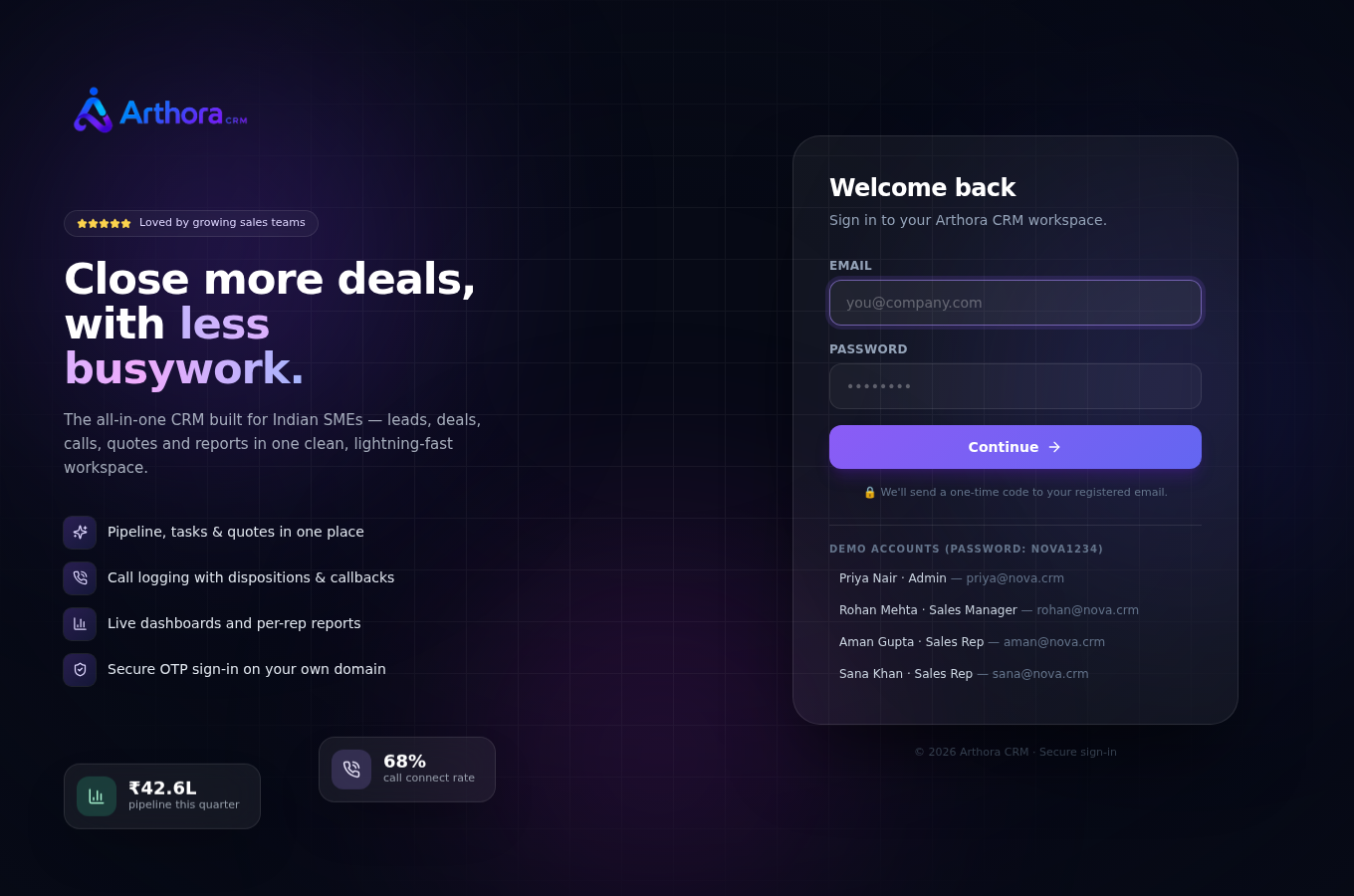
Login screen — email + password, phir OTP
💡 Email na mile to Spam/Junk folder check karein, phir “Resend code” dabayein. Password bhool gaye? Login screen par Forgot password? dabao — email par reset link aa jayegi (1 ghanta valid).
2 Home dashboard
Login ke baad Home par aapke din ka poora snapshot milta hai:
- Open Leads, Pipeline Value, Win Rate, Tasks Due — upar ke 4 cards
- My Open Tasks aur My Meetings — aaj ka kaam
- My Deals Closing This Month — value ke saath
- Upar right me refresh aur view customize karne ka dropdown
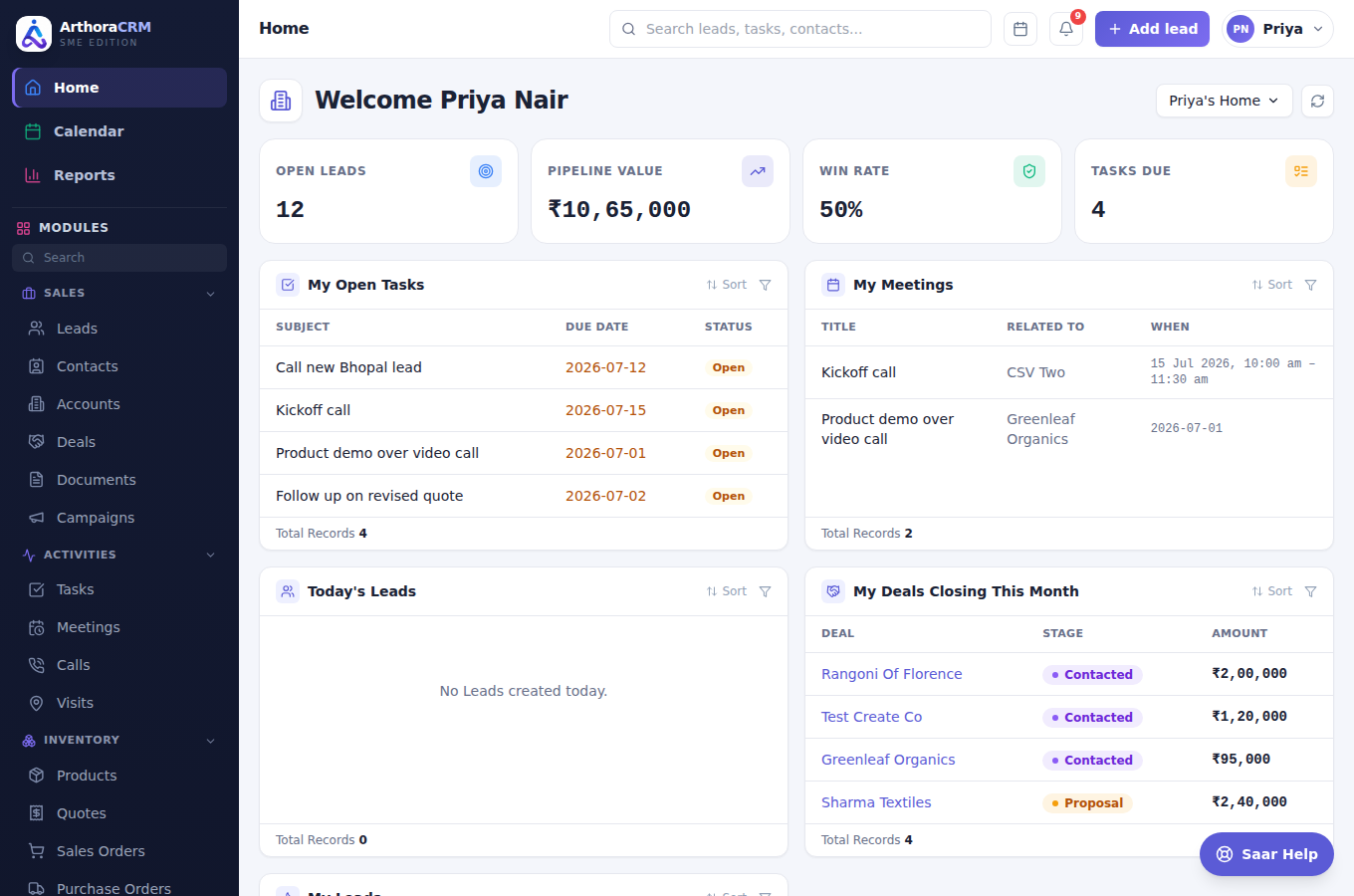
Home dashboard
3 Leads
Naya lead banana
- Sidebar me Sales → Leads kholo.
- Right upar Create Lead dabao — poora detailed form khulega (naam, company, phone, email, source, status, address…).
- Details bhar kar Save karo.
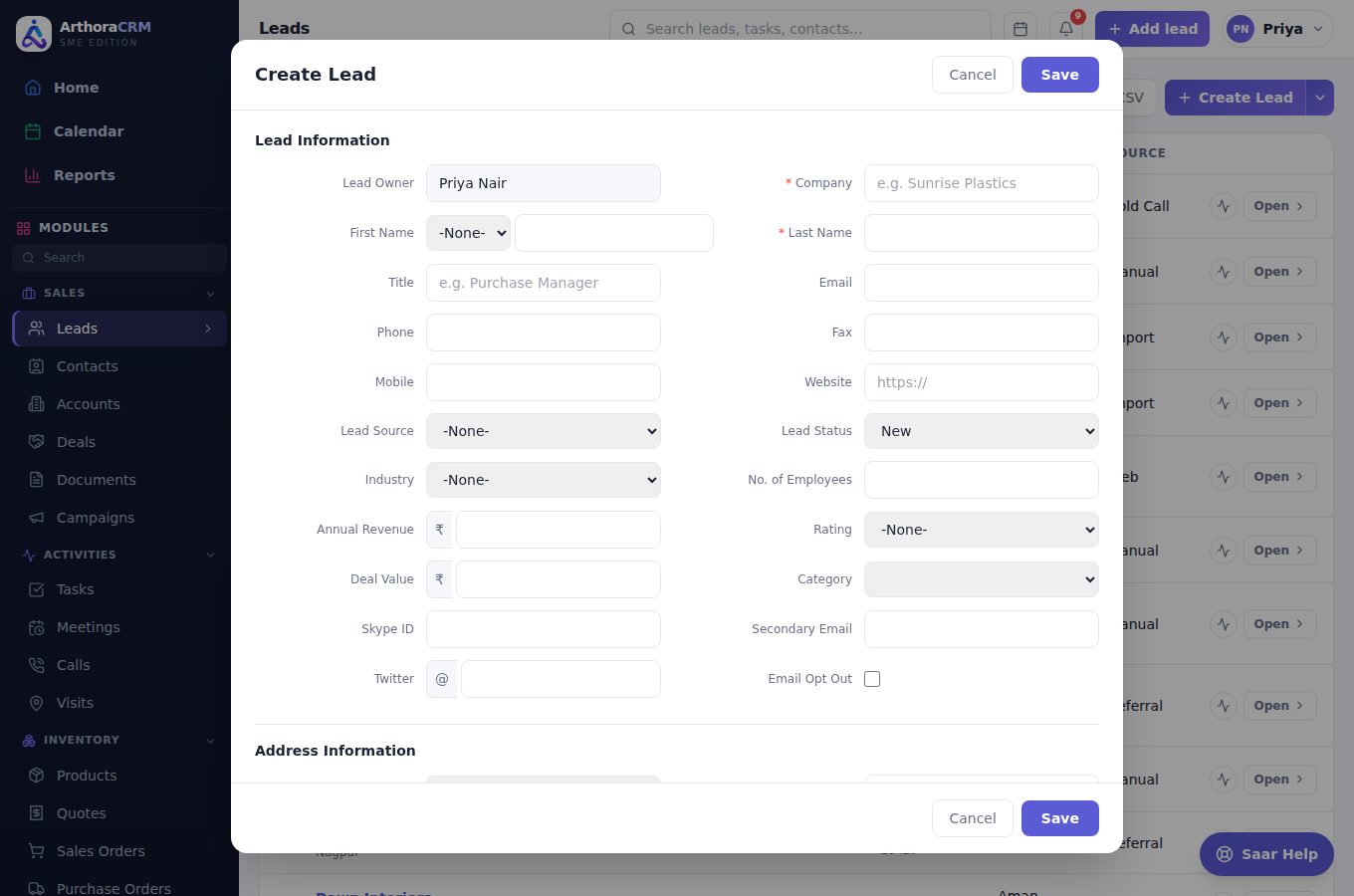
Create Lead form
List ke powerful tools
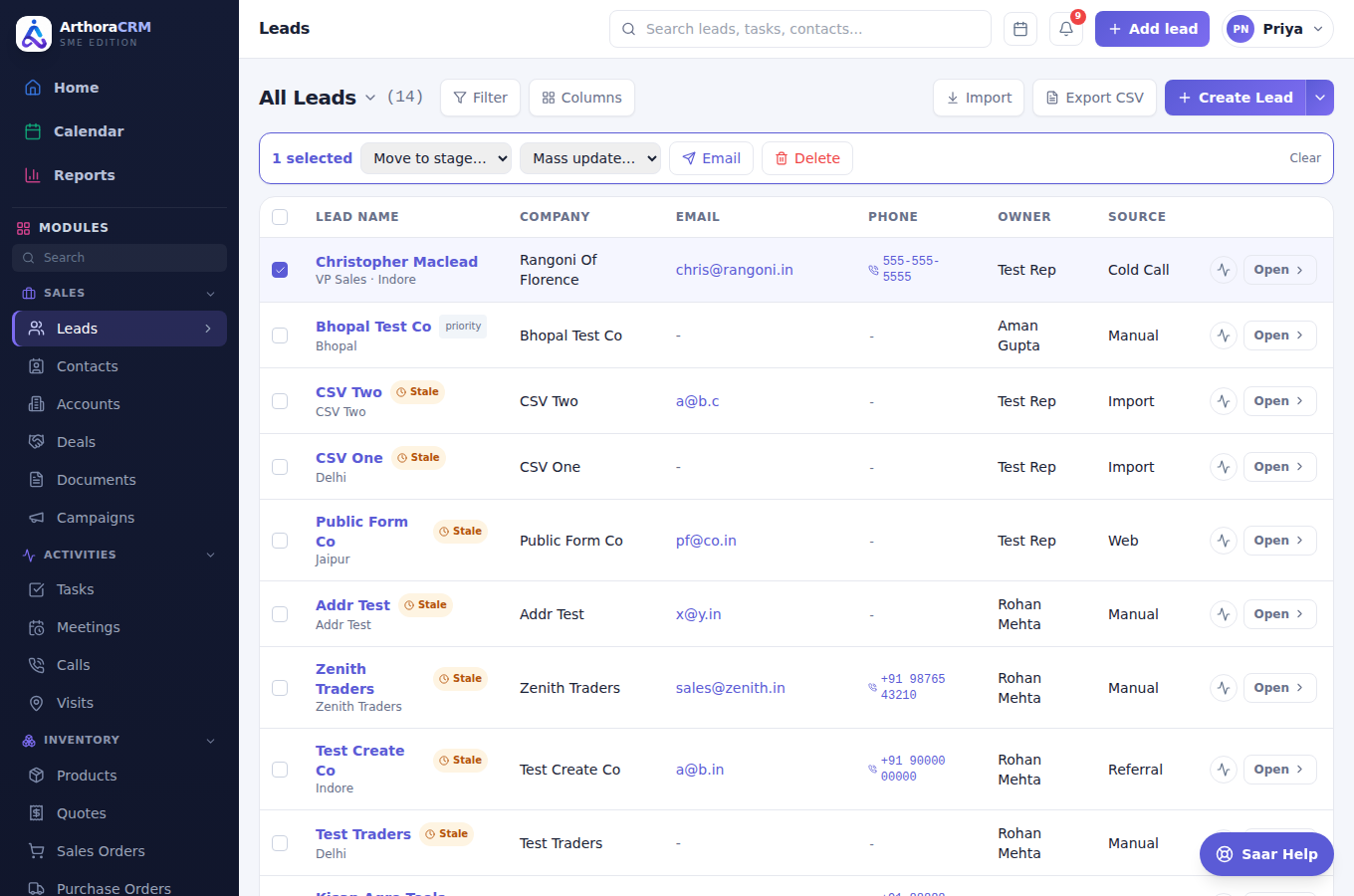
- Filter button — system filters (Touched/Untouched, Converted…) + field filters
- Search, column sort, aur checkbox se bulk actions (status change, delete, email)
- Create Lead ke bagal wale caret se CSV Import — purane leads minutes me le aao
- Export CSV — filtered list download
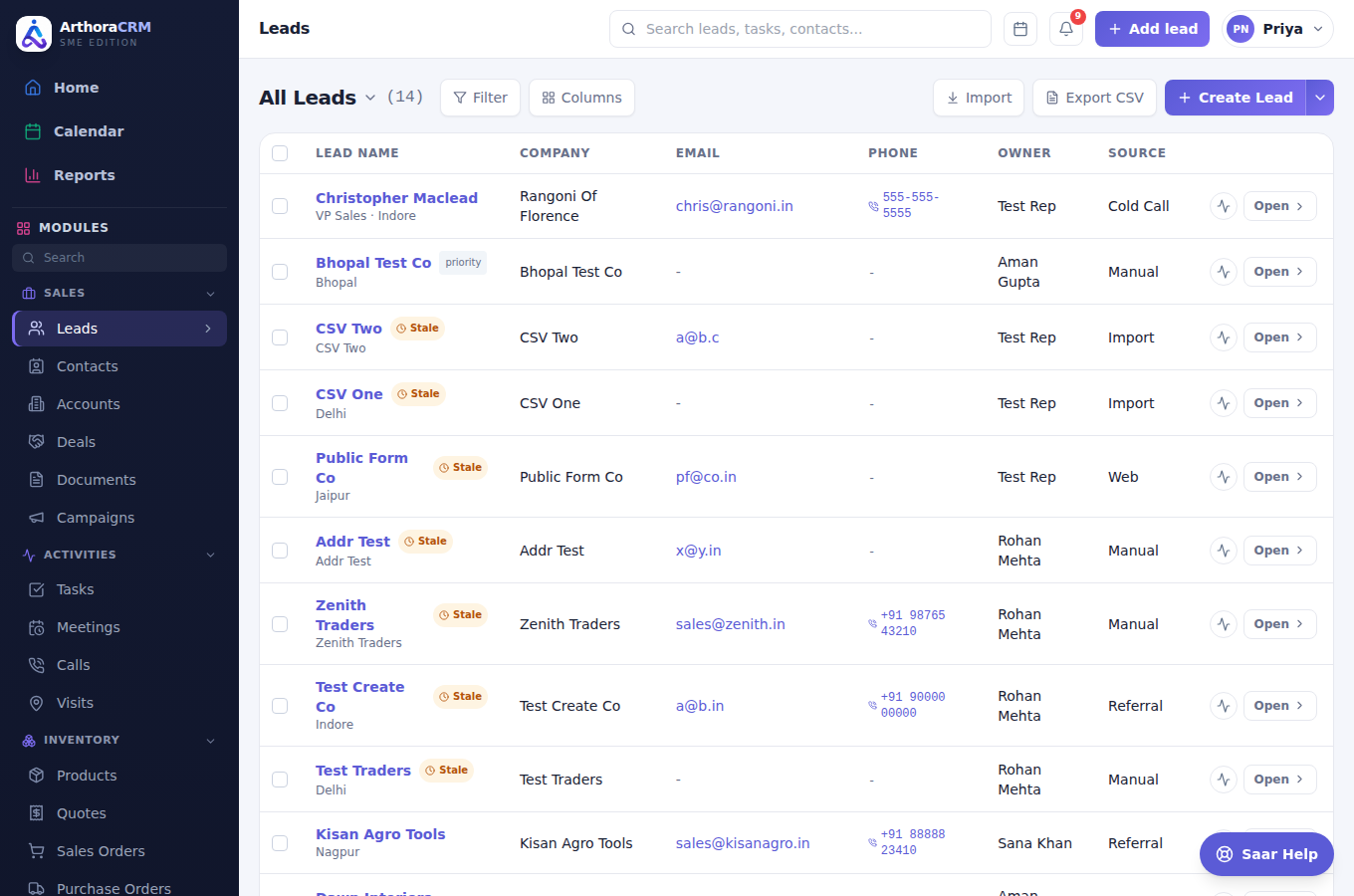
Leads list — filters, bulk-select, import/export
4 Lead ka detail page
Kisi bhi lead ke naam par click karo — poora record khulta hai:
- Overview — saari fields; Lead Status yahin se badlo
- Timeline — har call, note, email, status change ka record
- Left me Related Lists — Notes, Attachments, Quotes, Sales Orders, Activities, Emails…
- Upar Send Email (asli email jaati hai), Convert (deal banao) aur Edit
Lead detail — overview + related lists
5 Deals (pipeline)
- Sales → Deals kholo — Kanban board dikhega: New → Contacted → Proposal → Won / Lost.
- Deal ke card ko drag karke agle stage me daalo — bas itna hi.
- Board / List toggle se table view; Filter aur search bhi hai.
- Har column ke neeche us stage ki total value dikhti hai.
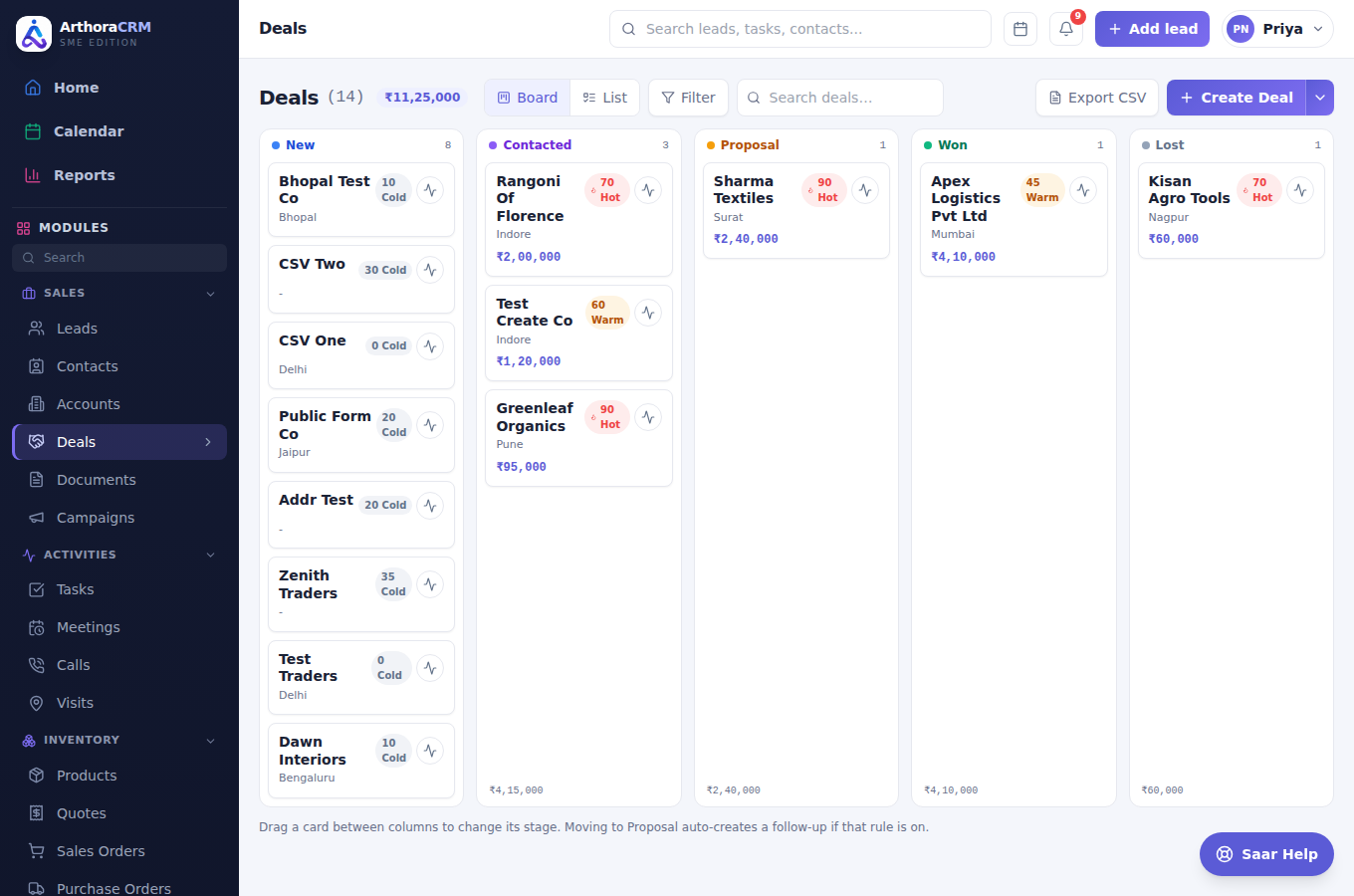
Deals board — drag & drop stages
6 Calls
- Activities → Calls kholo.
- Log Call dabao — lead chuno, direction (Outbound/Inbound), outcome (Connected, Callback, Interested…), duration aur notes bharo.
- Outcome Callback chuno to date-time set karo — woh aapke tasks me aa jayega.
- Upar cards me connect rate, total talk-time jaisi summary milti hai.
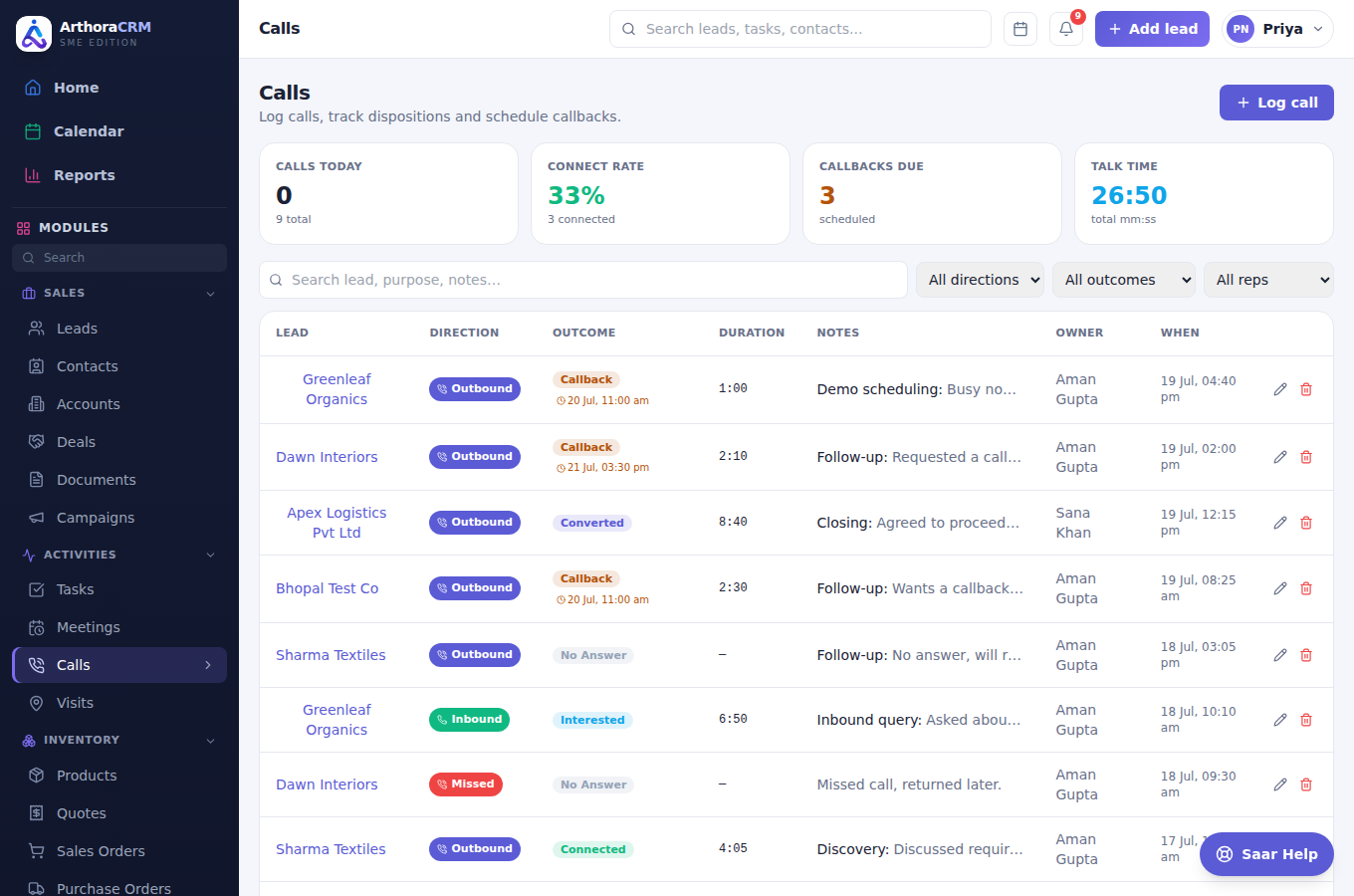
Call management — dispositions aur callbacks
7 Quotes & invoices
- Pehle Inventory → Products me apne products daalo (naam, price, tax%).
- Inventory → Quotes → New quote — customer chuno, products add karo, discount daalo.
- Quote ke View se professional document khulta hai — type badlo (Quotation / Invoice / Agreement) aur Print / Save PDF karo.
- Search aur type/status filters upar hain; har quote card par item · qty · rate dikhta hai.
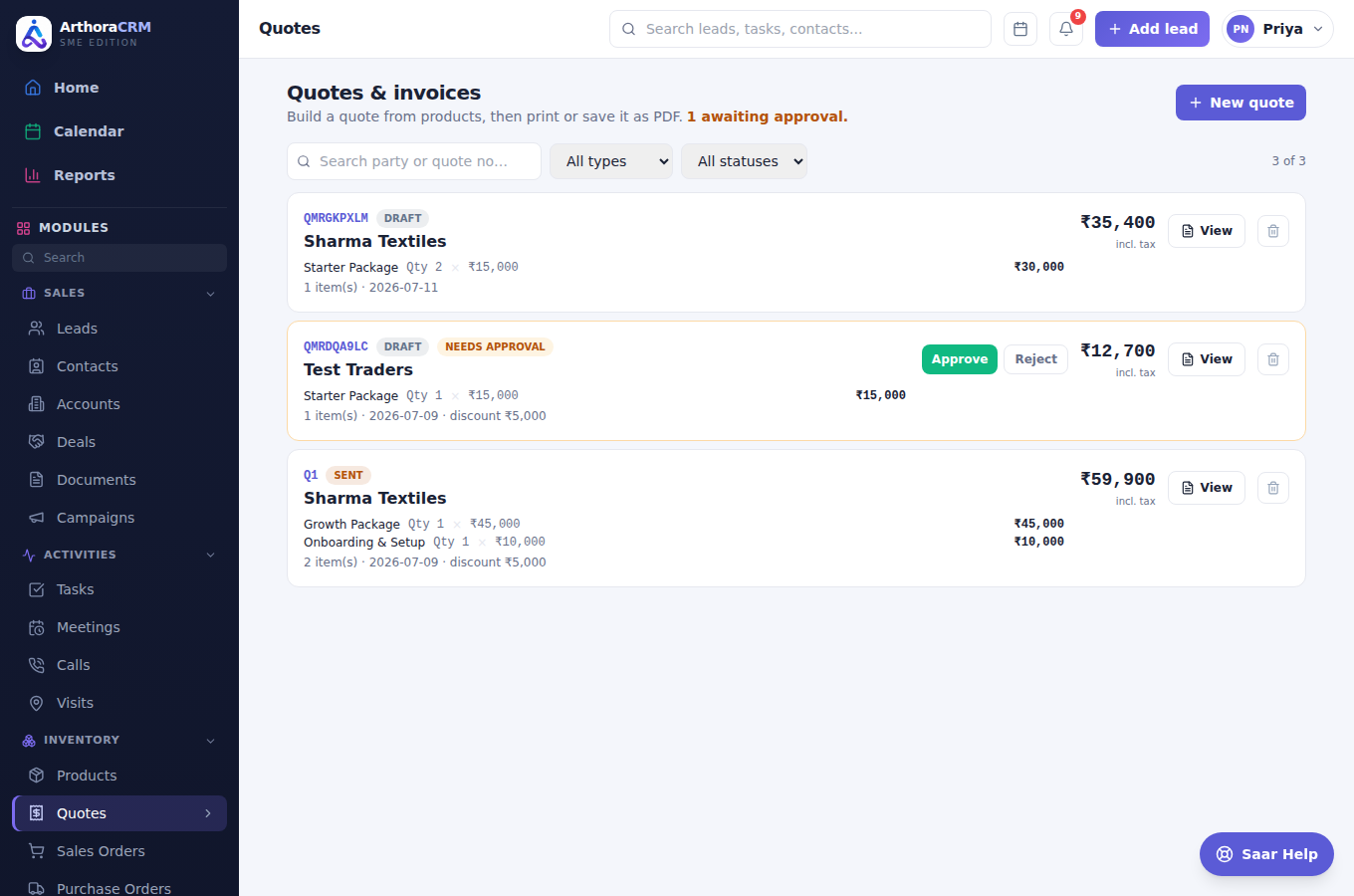
Quotes list — filters ke saath
8 Sales Orders (GST invoice)
- Inventory → Sales Orders → New order.
- Party chuno (Title apne aap bhar jata hai), tax type chuno — Intra-state (CGST+SGST) ya Inter-state (IGST).
- Line items daalo — Item, Qty, Rate, GST% — total live calculate hota hai.
- Bank details (account, IFSC, branch) bhi order par save hote hain.
- List me Invoice dabao — GST breakdown, amount-in-words aur bank details ke saath TAX INVOICE — Print/PDF karo.
- Pay se payment record karo — received date + UTR number ke saath; outstanding apne aap ghatta hai.
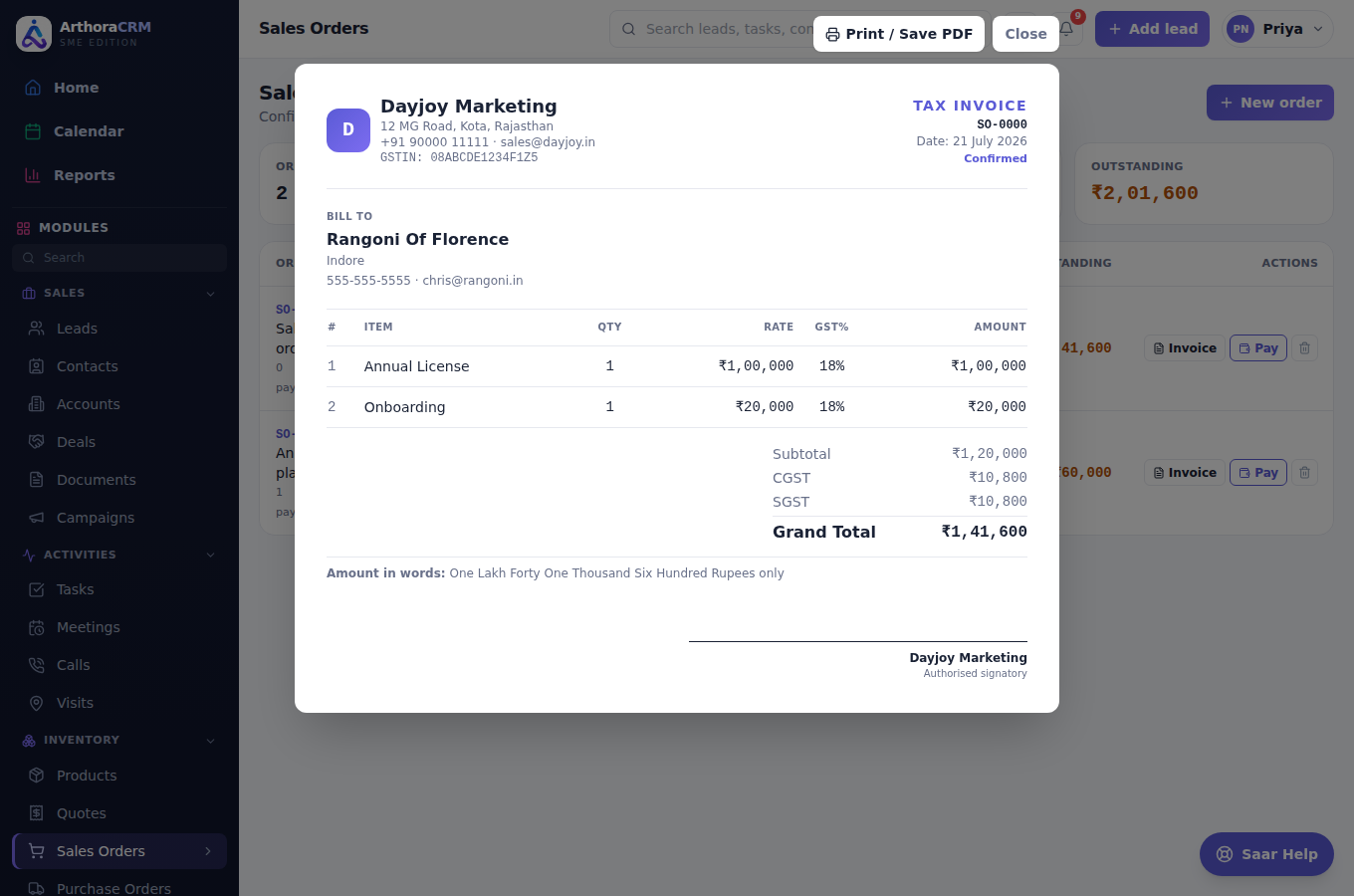
GST tax invoice — CGST/SGST, bank details, amount in words
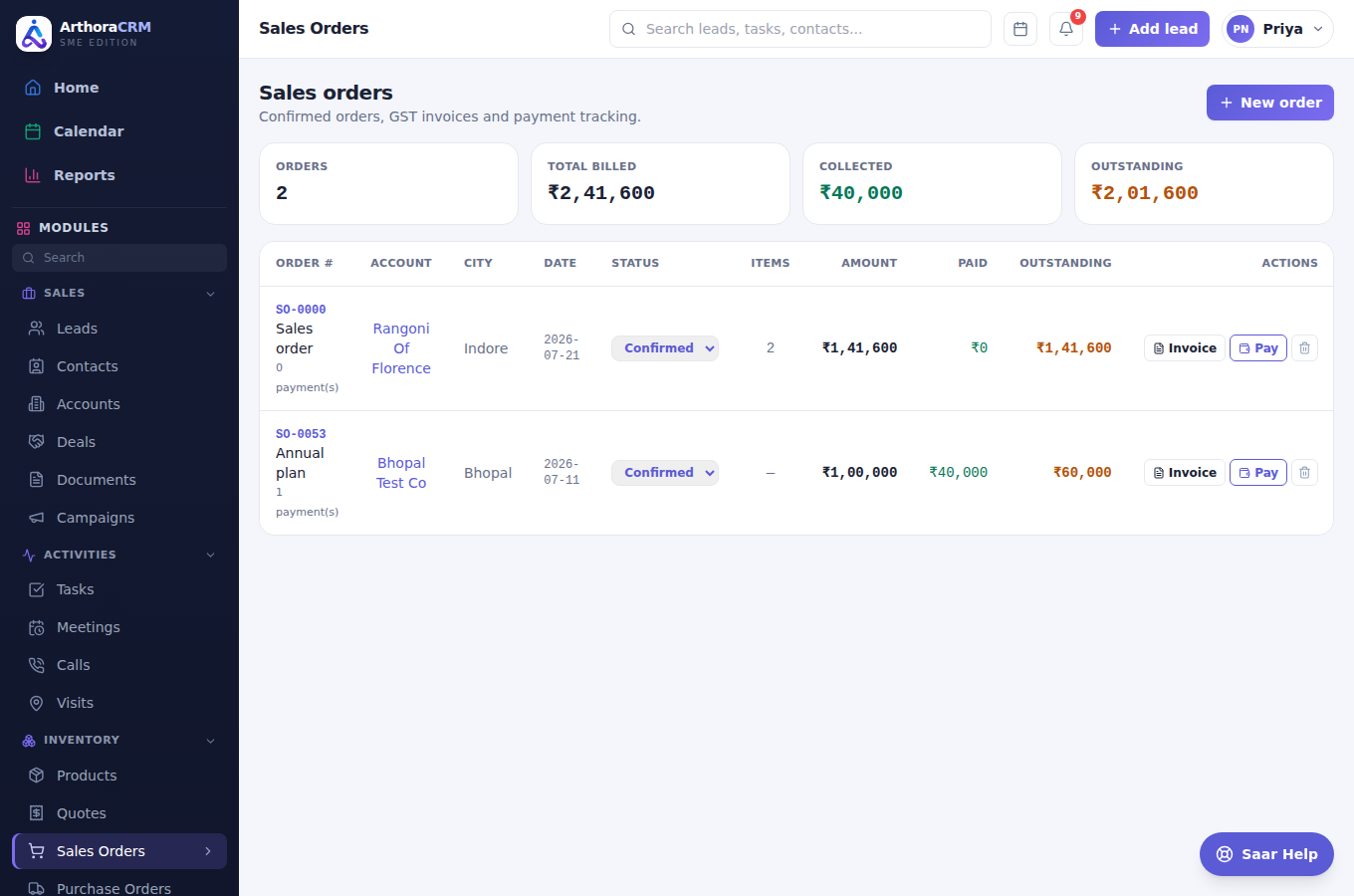
Sales orders list — SO number, paid/outstanding
9 Purchase Orders
Vendors se khareedne ke liye — Sales Orders jaisa hi, bas ulta:
- Inventory → Purchase Orders → New purchase order.
- Vendor/Supplier chuno, GST items daalo, bank details bharo.
- Document PURCHASE ORDER title ke saath banta hai (PO-0001 numbering); payments UTR ke saath track karo.
- Status: Draft → Ordered → Received.
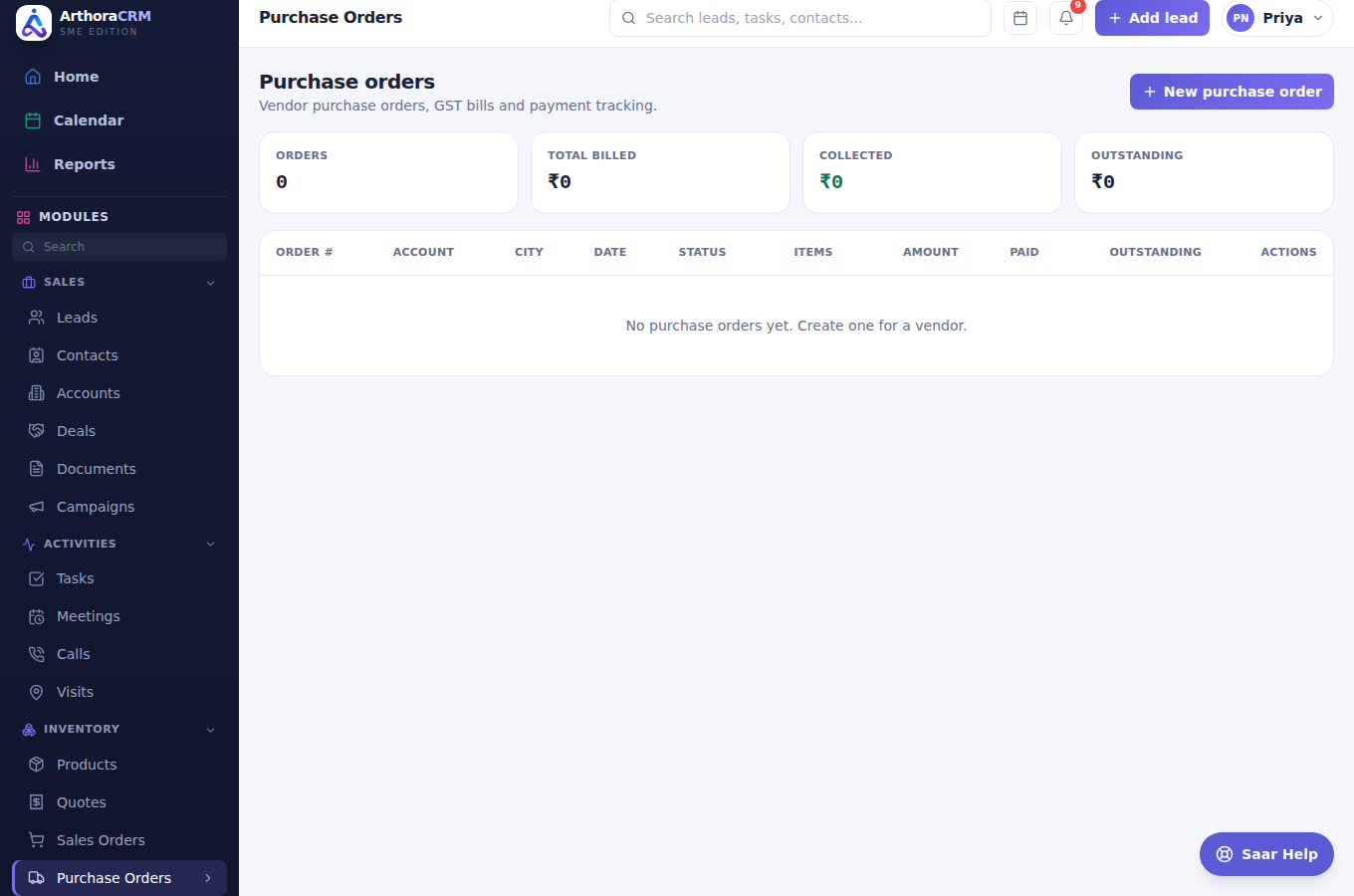
Purchase orders module
10 Documents drive
- Sales → Documents kholo — do tabs: Files & Folders aur Quotes & Invoices.
- Files tab me New → New Folder / Upload File — apni files (25 MB tak) store karo.
- Team Folders ke + se team folder banao (Admin/Editor/Viewer roles ke saath).
- Kisi bhi file par hover karke ⋯ se Download / Rename / Delete.
- Quotes & Invoices tab me saare documents party-name ke saath — View, PDF aur filters.
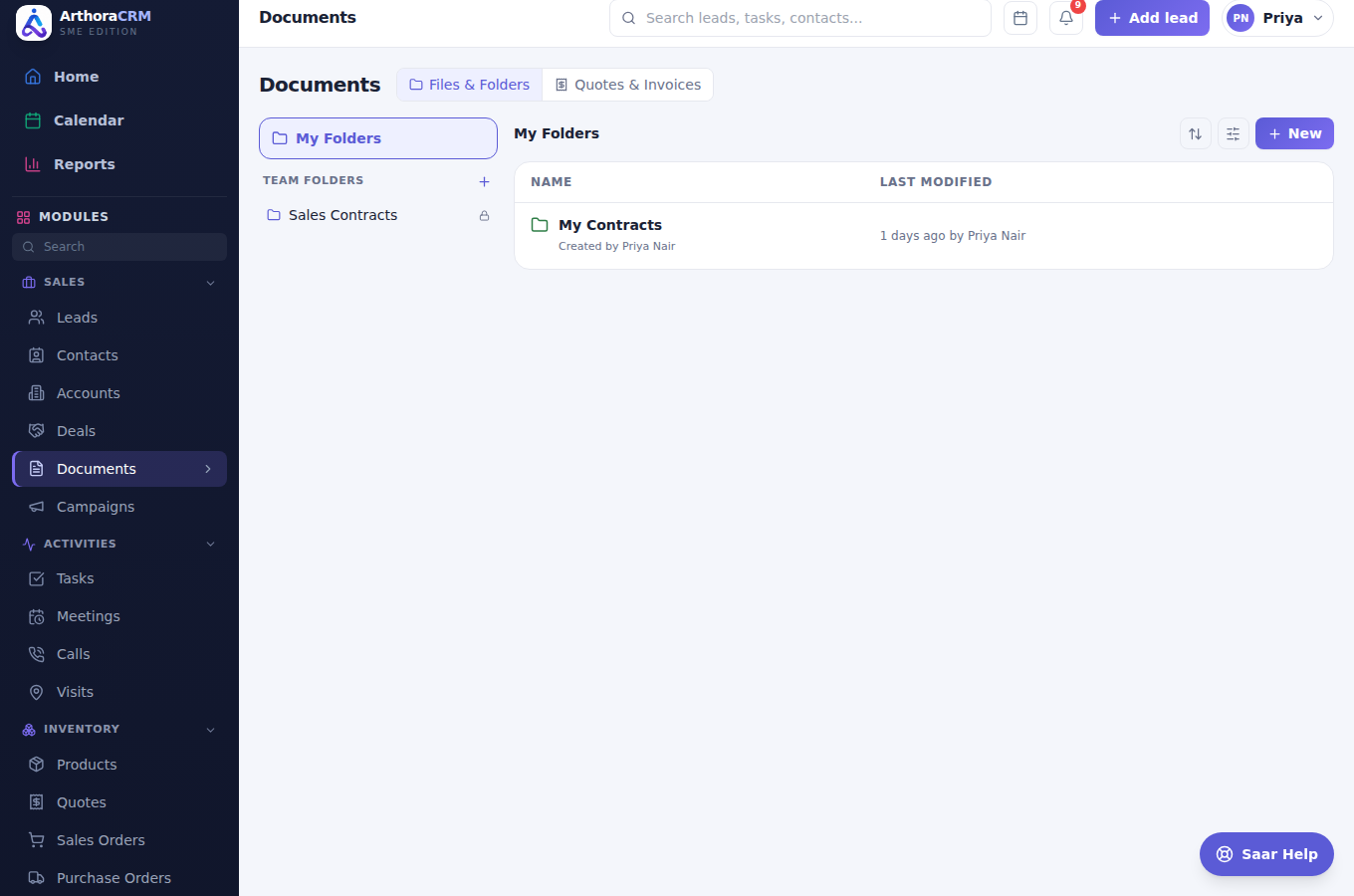
WorkDrive-style documents drive
11 Reports
- Sidebar me Reports kholo — upar live dashboard (pipeline, forecast, win rate) hai jo Customize se set hota hai.
- Neeche 13+ ready reports — Revenue Forecast, Pipeline by Stage, Win/Loss, Call Performance by Rep…
- Kisi report par click karo — date range filter aur Print / Save PDF milta hai.
- List ko columns par sort karo aur Export CSV karo; Email digest se summary mail bhejo.
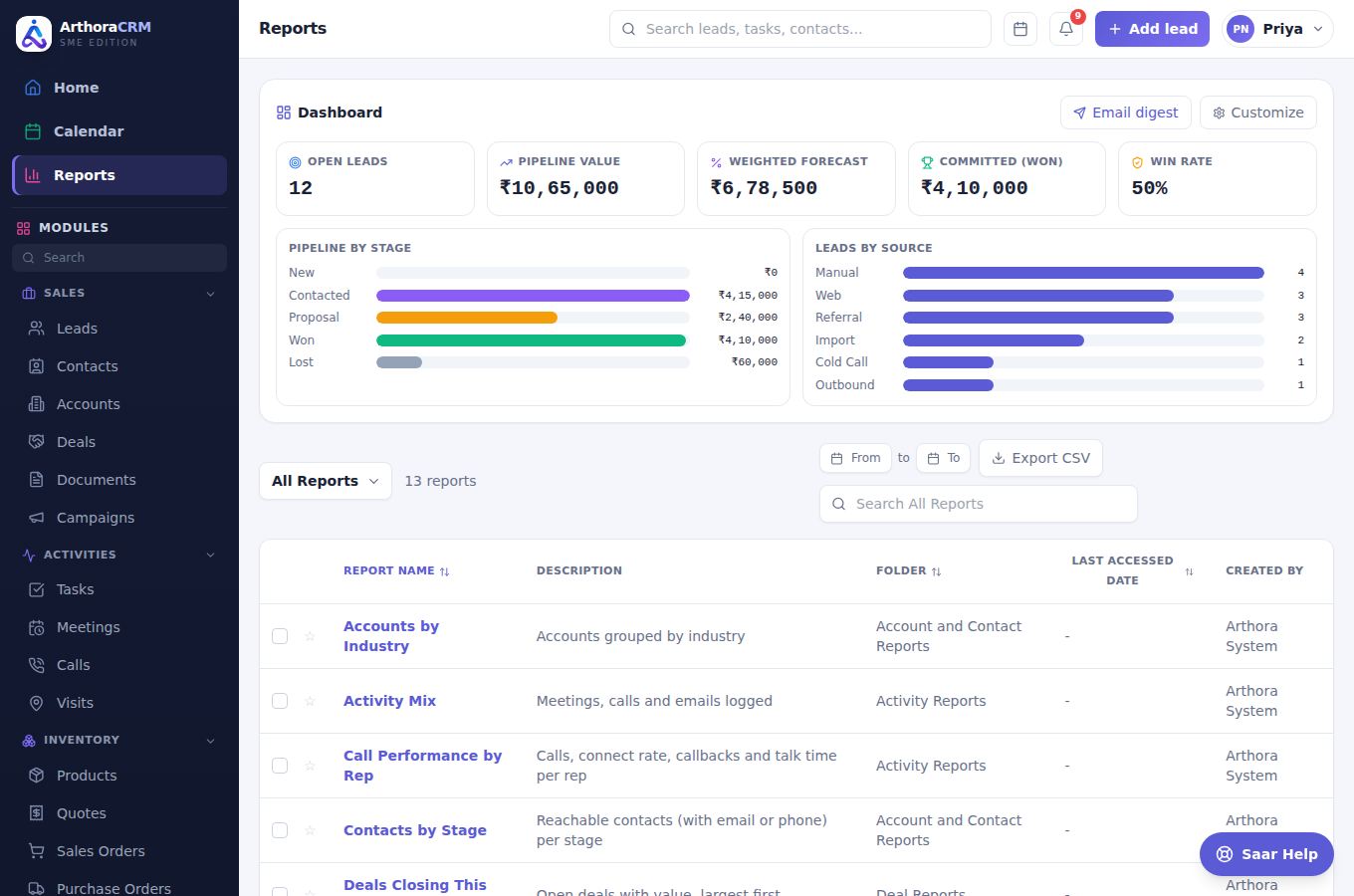
Reports hub — dashboard + 13 reports
12 Team & Users
- Administration → Team & Users kholo.
- Plan owner ho to simple form milta hai — member ka naam, email, mobile, password daalo aur Create dabao. Member apne email/password + OTP se login karega.
- Aapke plan ki user limit tak hi members ban sakte hain (Starter 5 · Growth 15 · Enterprise unlimited — aap bhi count hote ho). Upar seats counter dikhta hai, jaise 3 / 5 users.
- Team ka data aapas me share hota hai: aapko poori team ke leads dikhte hain, members ko apne. Orders, quotes aur documents team me share rehte hain.
- Reset pwd se member ka password badlo; 🗑️ se remove karo — uske records aapko mil jate hain.
- Har member ka target set karo — Target Attainment report me progress dikhega.
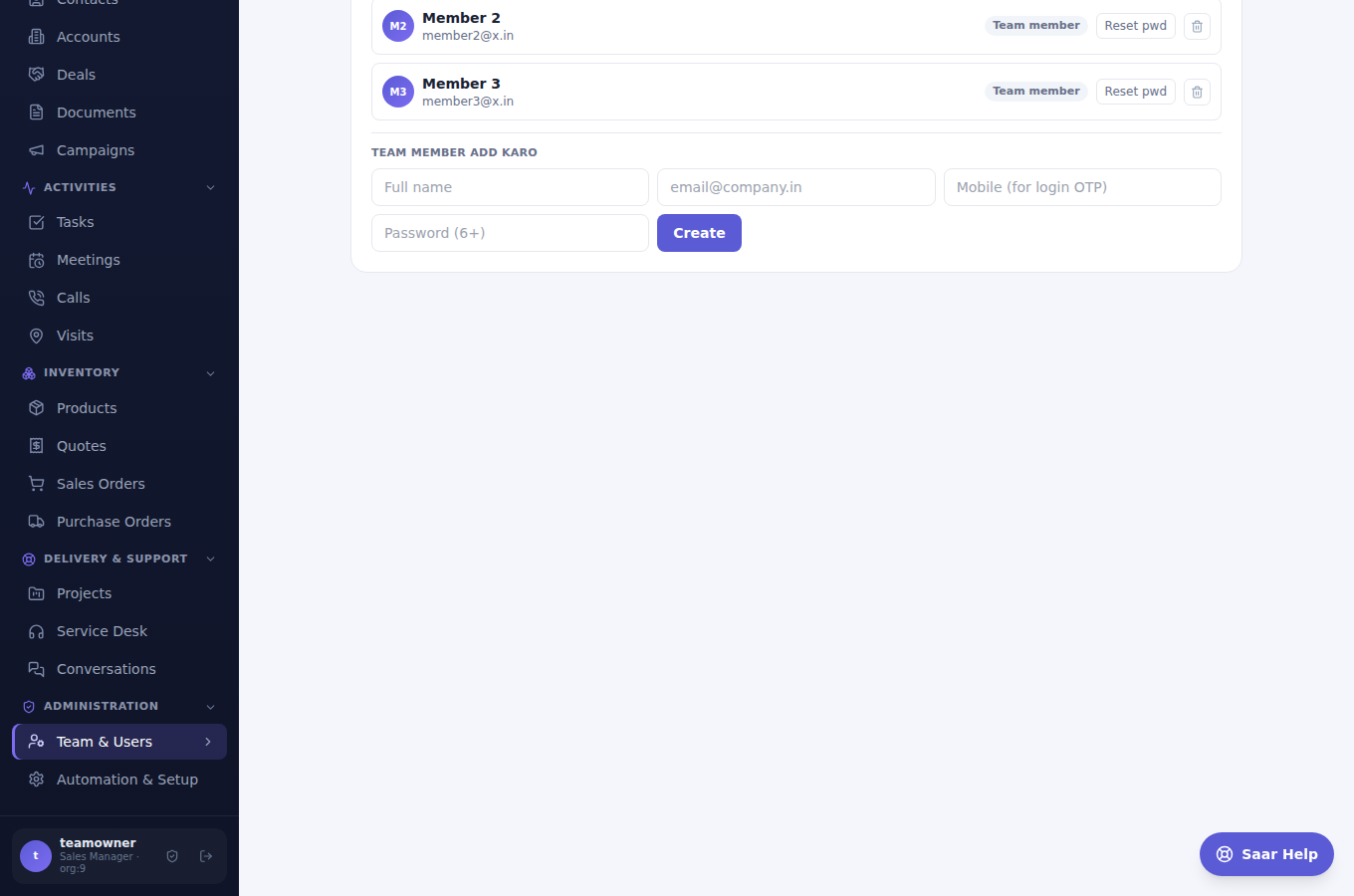
Team & Users — members list aur "Team member add karo" form
⚙️ Automation & Setup me company profile (GST, bank — invoices par chhapta hai), Subscription/License card, email integration, custom fields, categories aur audit log milta hai.
13 Plans, trial & billing
- 7-din ka free trial: arthora.in se instant account milta hai — upar amber chip me bache hue din dikhte hain. Trial khatam hone par account lock ho jata hai, data delete nahi hota.
- Plan kharidna poora automatic hai: arthora.in par payment karo (Starter ₹6,999 · Growth ₹11,999 · Enterprise ₹30,999 per year) — payment hote hi aapka account ban jata hai aur email par password set karne ki link aati hai.
- Link kholte hi neeche wali screen milti hai — password banao aur seedha login karo. Na koi key daalni hai, na kisi ka wait karna hai.
- Plan 1 saal chalta hai. Aakhri 30 din me upar renew ki yaad dilane wala chip dikhta hai; dubara payment karte hi validity 1 saal aur badh jati hai — poori team ke liye.
- Trial user ne payment kiya to wahi account turant paid ban jata hai — data wahi rehta hai.
- Madad chahiye? WhatsApp 92515 41185 ya support@arthora.in
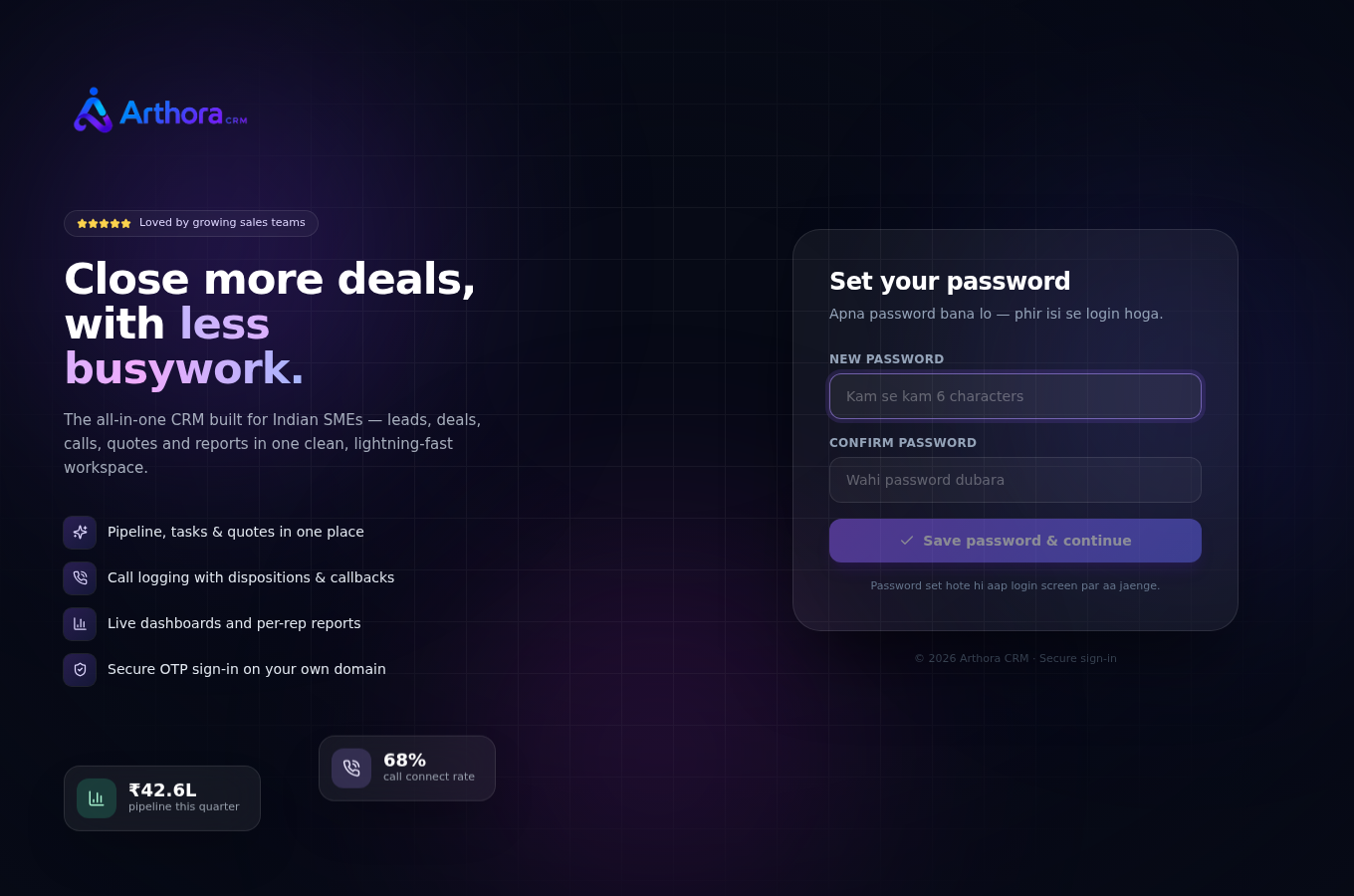
Payment ke baad email link se — Set your password screen
🤝 App ke andar bhi madad hai — right-bottom me Saar Help button har feature ka jawab deta hai.